Open the dashboard
Run:
previewhost dashboardThe command opens your default browser. Keep its terminal running while you use the dashboard. Closing the page or stopping this command does not stop your previews.
The dashboard lists automatic project owners and data retained after clean owner shutdown. Deleted worktrees can still have retained data. Standalone serve instances and embedded runtimes do not appear automatically.
Discovery does not start anything. New preview can start a project after you review its configuration and approve access.
Start a preview
Choose New preview, then a known project, a registered Git worktree, or an absolute folder path. Selecting a folder does not move an existing preview or share its database data.
Use its existing configuration file, or enter YAML/JSON without creating a file.
Default lookup accepts preview.yaml or preview.yml; invalid or conflicting files require correction.
Relative source paths resolve from the file's directory, or the selected project for pasted input.
Use Configuration guide for examples, or optionally copy a prompt for an agent to inspect your project.
An agent is not required. Review source folders, commands, jobs, and managed databases before allowing startup.
Private setup handles secret approval, missing values, and owner unlock. After completion, return and continue startup. Cancellation requires an explicit new request; it never starts the application. Closing a review does not cancel an open private form. Return to Continue setup on the preview, or the unfinished reviews in New preview, to check setup and explicitly start the application. Refresh does not discard a reviewed configuration. Multiple reviews stay separate. Changing or discarding reviewed edits invalidates the previous review, including copies open in another tab.
Reviews remain available for 30 minutes after your last review or change, with at most 16 retained.
Configuration stays in the dashboard process, not browser storage. When it exits or a review expires,
choose the file or paste configuration again. Saved secrets remain.
If you close the browser tab, restore the closed tab. A new
previewhost dashboard process cannot recover an old process’s unfinished reviews.
Existing owners keep their execution permissions. The dashboard does not restart an owner to
change those permissions. If it was started without execution permission, explicitly shut it down
and relaunch with --allow-exec. This stops that owner's previews; managed data and stored values remain.
Find the right preview
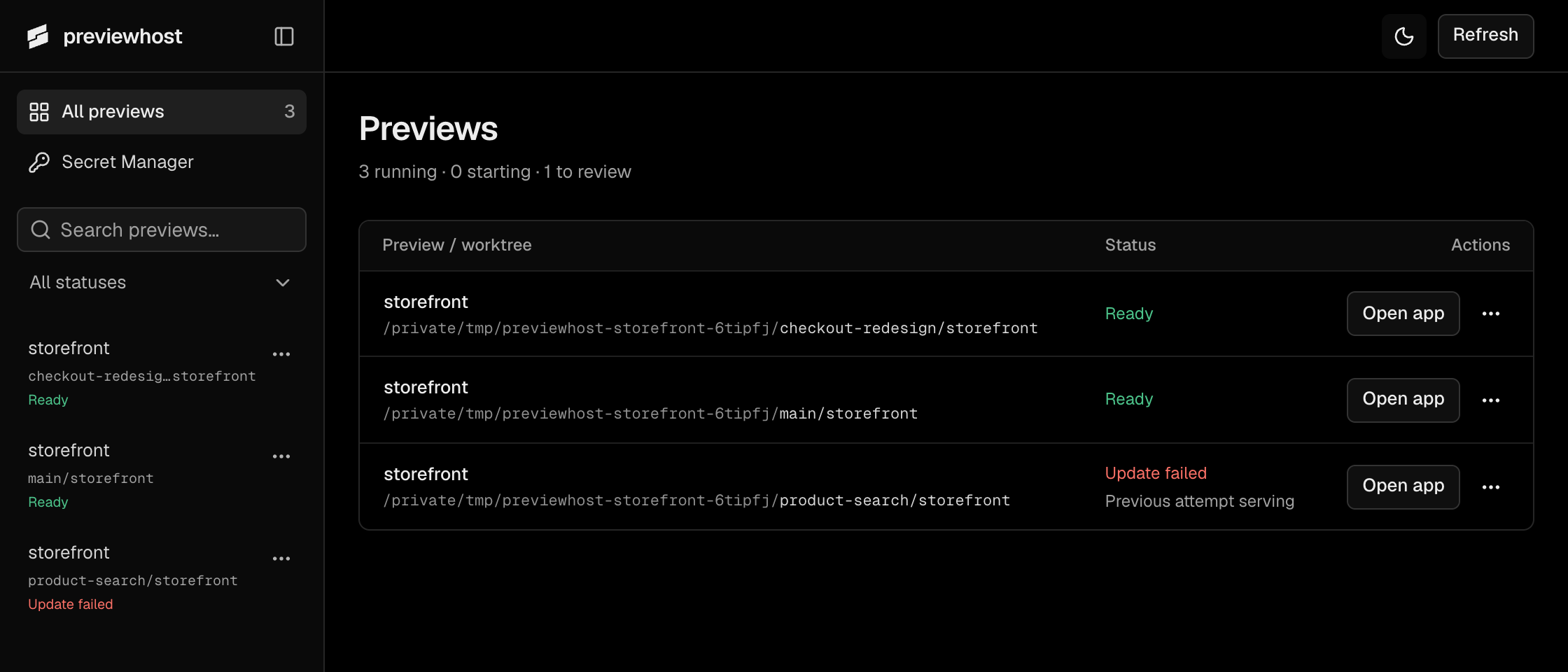
Overview compares previews across projects. Each row identifies the project and worktree. Rows open details; Open app opens the serving application, even if a later update failed. Preview details show its hostname and numeric localhost URL when available, with open and copy actions. They are different browser origins; switching does not bypass CORS. Search by branch, folder, preview name, or source path. All, Active, Needs attention, and Inactive keep your search. An active application with a failed update appears in both Active and Needs attention. An unavailable owner is not assumed inactive.
The sidebar groups linked Git worktrees by repository. Expand several projects to compare worktrees. Project menus offer Pin project, Unpin project, and Move up/down among pins. Pinned projects appear first under Pinned. The remaining projects appear alphabetically under Projects. Use New preview in the sidebar to start from any page. These preferences survive dashboard restarts and do not change running previews, data, or secrets. Without pins, all projects remain visible. Preview menus appear on hover or keyboard focus, and stay visible for the selected preview and on touch screens.
Separate clones and non-Git folders stay separate. Matching names show a distinguishing path. When Git metadata is unavailable, folder labels remain usable. Branch labels reflect current source; a preview spanning repositories stays under its owner's project.
The list fills as project checks finish and updates automatically while the dashboard is visible. Browser Back returns to the previous view. Each preview keeps its diagnostic selections for this browser session, including after reload. Runtime information is fetched again.
Inspect services and updates
Open a preview's Activity tab to see services, setup jobs, and available recovery actions. Resource icons identify the declared service type. The title and addresses scroll away while diagnostic tabs remain reachable. Serving identifies the active application. Latest update identifies the replacement attempt. Services and setup jobs identify the attempt they belong to. A failed resource's Logs action selects that exact attempt and source. Failed updates do not roll back source edits or database writes. Waiting resources name their unfinished dependencies. Managed databases show Starting while being prepared.
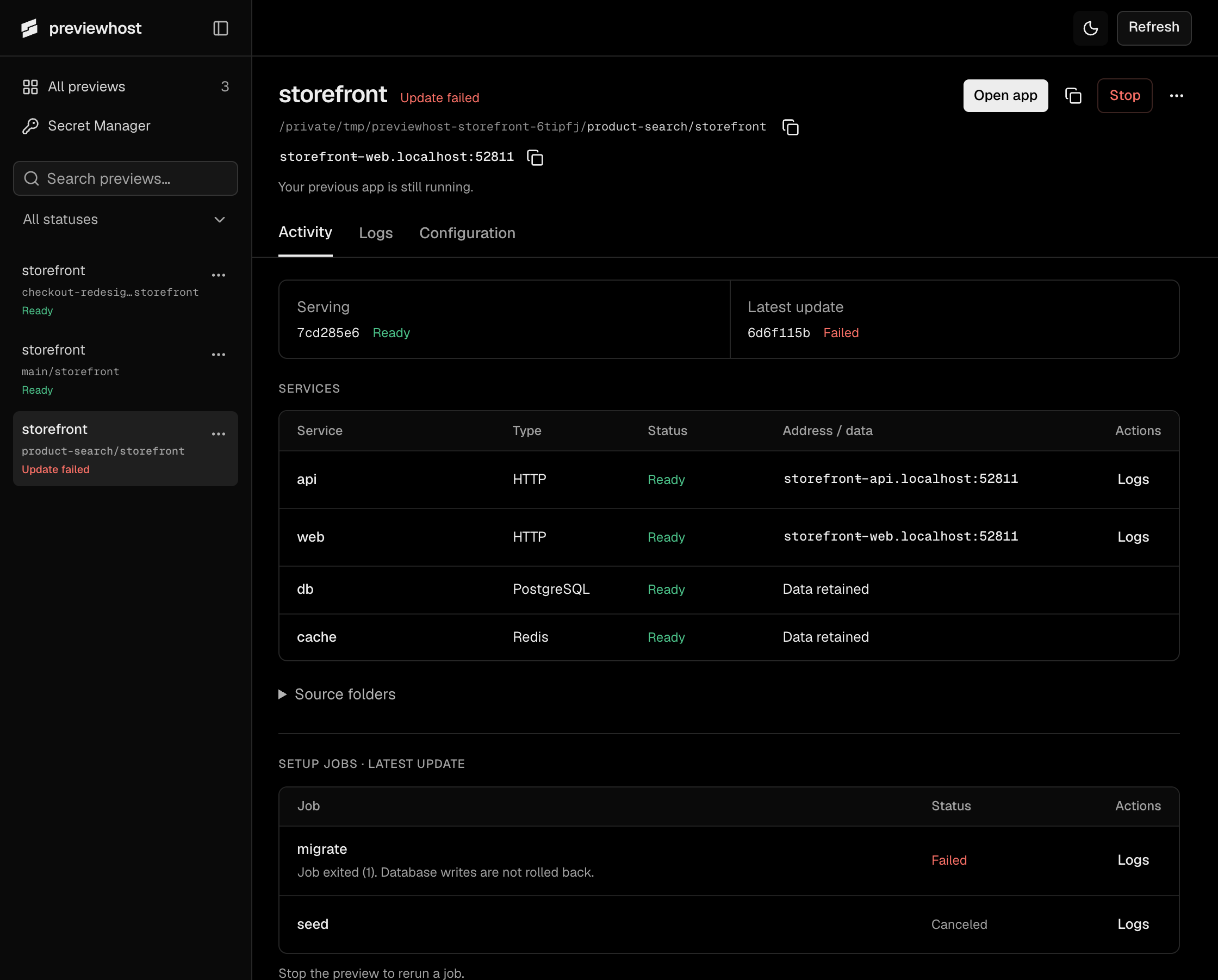
| What you need | Action and consequence |
|---|---|
| Diagnose a failure | Open the failed job's Logs, or choose its attempt in the Logs tab. |
| Abandon a pending update | Cancel update leaves the previous application running. |
| Stop the preview | Stop ends owned processes and retains managed data. |
| Start after stop or cancellation | Start preview uses retained configuration and current source. Its URL can change. |
| Retry a failed initial start | Retry start reruns that attempt after you fix its cause. |
| Start with fresh managed data | In the preview menu, Reset data names the databases before confirmation, then starts the preview again. |
| Delete data without restarting | After stop, Delete data removes the selected managed databases. Deletion cannot be undone. |
| Clear an old entry | Remove entry requires no remaining work, managed data, or incomplete cleanup. Sources and saved secrets remain. |
| Check an unavailable owner | Recheck status retries the connection. Remove entry explains blockers and requires confirmation that application processes stopped. |
Start and retry use retained configuration. To load file changes, open Configuration and choose Review and apply, or use CLI/MCP start/replace. Retry start does not open private setup. Complete any required secret approval and owner unlock before retrying. Removing the last entry closes an empty automatic owner and ends its secret approvals. Offline entries contain no restart configuration. Use New preview with a file or direct configuration, or start through CLI/MCP. See setup jobs for explicit reruns and reset behavior.
Reset and deletion results stay in the confirmation dialog. Reset reports deletion separately from startup: a failed migration does not repeat deletion. Fix the cause, then retry startup. If the response is lost, recheck status before taking another action.
Read logs
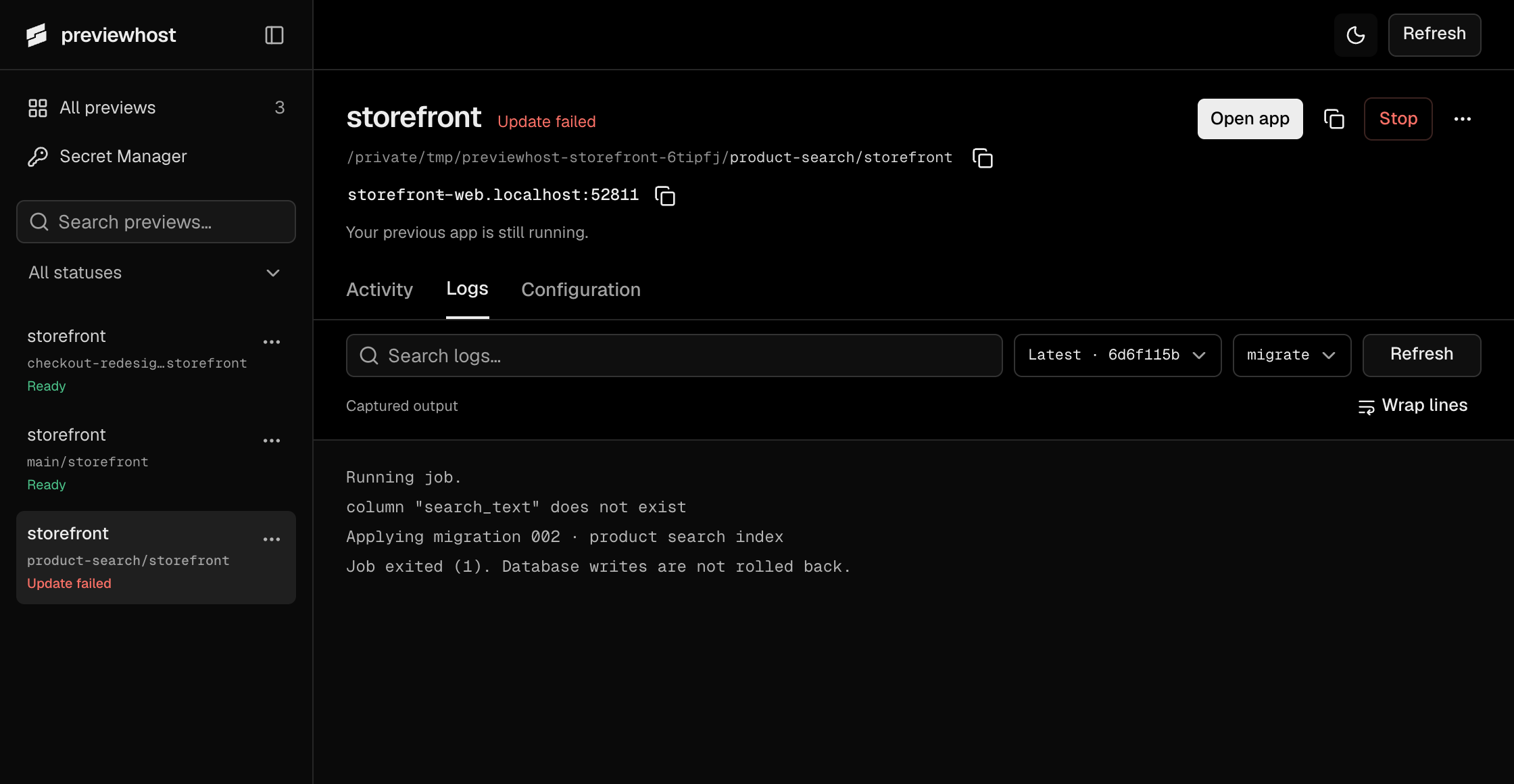
Choose the attempt before comparing output. A failed replacement and a serving app have separate logs. Then select a service or job, or use All output. Logs are bounded tails, not a permanent archive.
Refresh logs in the Logs toolbar retrieves current output and environment status. Search, source, attempt, and scroll position remain selected; logs do not update automatically. The Log options menu offers line wrapping and surrounding lines for search matches. Its Clear view action hides output through the current cursor in this view only. Refresh shows newer output. Show earlier logs restores what is still retained. Changing attempts opens that attempt normally. Other windows, agents, and the stored log buffer are unchanged.
Save configuration and manage secrets
Choose the configuration
Current configuration opens the exact input file when the attempt records one; otherwise it opens the retained direct configuration. Recorded attempt remains a read-only historical view. When a replacement fails, Failed update configuration opens its input file or retained declaration for correction. Project configuration file explicitly selects an existing root file when it differs from that attempt.
The editor changes environment variables for command services and setup jobs. To change commands, sources, services, or readiness settings, edit the configuration file or prepare new YAML/JSON through New preview.
Add, edit, or remove a variable
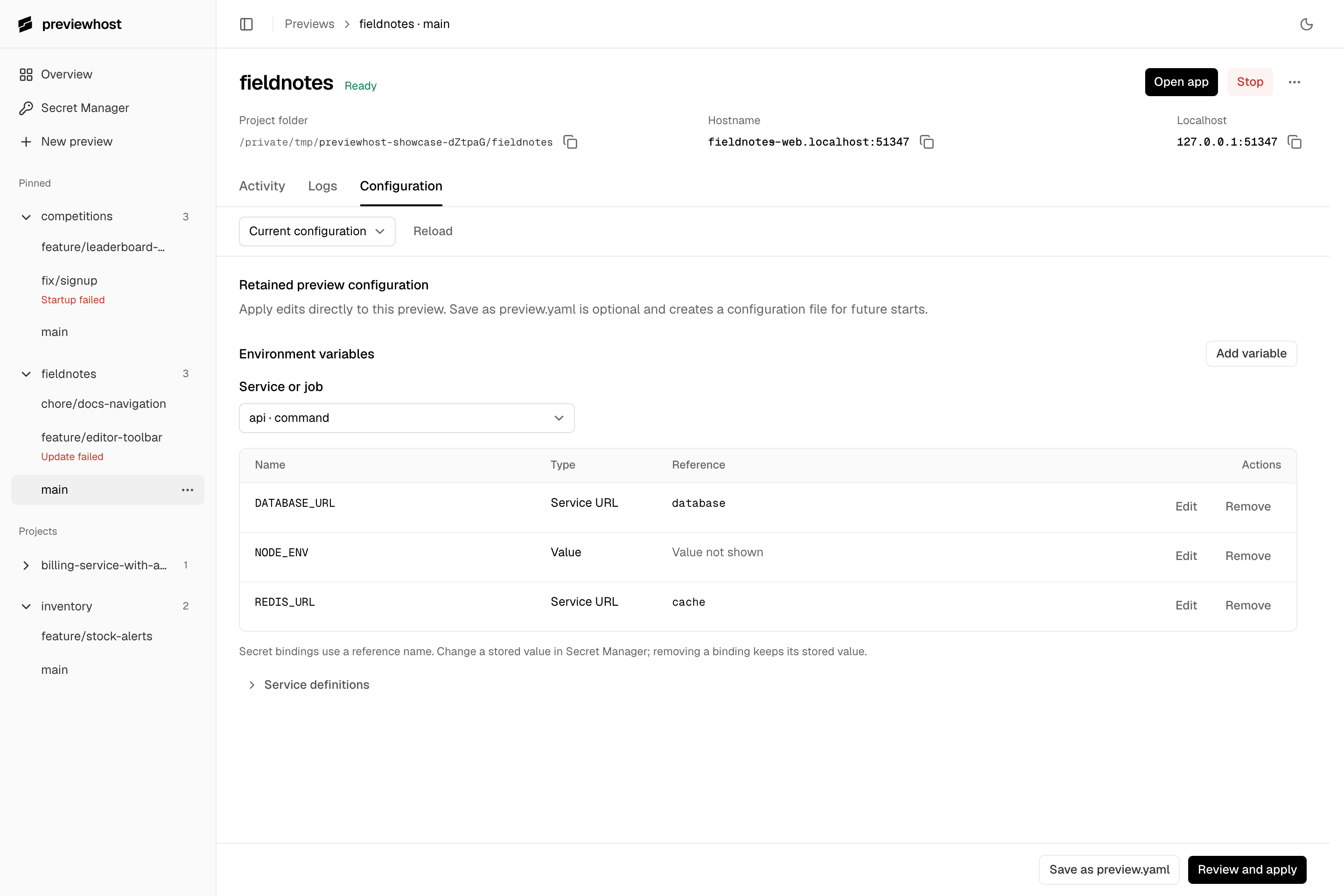
- Open the preview's Configuration tab. For an environment, select its Service or job.
- Choose Add variable, or Edit beside an existing variable.
- Enter the variable name and choose its Value source.
- Choose Keep change to stage the edit. To remove a variable, use its Remove action.
- Save and apply the changes as described below.
| Value source | Where the value comes from |
|---|---|
| Value | Text supplied in the configuration, such as NODE_ENV: development. Use a secret reference for credentials. |
| Secret | A value stored in Secret Manager, such as shop/dev/api-token. Selection does not grant access. |
| Service URL | An internal HTTP or database connection URL. Startup waits for the selected service to be ready. |
| Browser URL | An HTTP service's .localhost address for browser requests. It does not add a readiness dependency. |
| Application URL | The primary service's numeric address. The primary service is selected automatically. |
| Runtime input | An input explicitly selected when the owner started, such as --env DEV_TOKEN. Other shell variables are unavailable. |
Service choices come from the selected configuration. Jobs cannot supply service URLs; browser URLs require HTTP services. Existing literal values are not displayed. To replace one, select Replace the existing value and enter the replacement.
For a secret, search stored reference names or enter a new name for later private setup. Unlock Secret Manager to browse existing names. Entering a reference does not require browsing. Use an exact existing name only for intentional sharing. See Bind a secret in the dashboard.
Save and apply changes
- Save file updates the selected file without changing the running application. Unedited values, comments, and relative paths remain. Formatting can change. Concurrent changes are rejected.
- Review and apply starts or replaces the whole environment after review. For file-backed edits, save first. A saved file remains saved if application startup fails or is canceled.
- Direct configuration can be applied without writing a file. Save as preview.yaml is optional and refuses to overwrite either default file.
Replacement keeps the old app serving until the new attempt is ready. It does not roll back source edits, migrations, or partial database writes. Successful once-only jobs stay completed; changing their bindings does not rerun them. Use the existing explicit job rerun when needed.
If the file or preview changes after review, reload and review the current configuration before trying again. Previewhost rejects stale changes instead of overwriting newer work. Direct configuration remains in owner memory; save it to a file if you need it after owner shutdown.
Manage stored secrets
Removing a binding keeps its stored secret and existing owner approval. Changing a stored value affects future starts that use that exact reference, including other projects; it does not restart them.
Secret Manager creates or unlocks the dashboard’s keystore session, then lists references. New secret stores a new value without granting any preview access. Edit replaces an existing value without restarting applications. Search covers all stored reference names. Use Next and Previous to browse bounded pages. Its Keystore options menu offers automatic unlock controls on macOS. Project owners unlock separately through private setup. Open private form handles missing values and access approval. Private setup shows pending forms or the latest request result. Completing setup does not start the app. See Secrets before changing a value shared across projects.